I am an avid reader. I would polish off Victor Hugo, and JK Rowling however I could not read Mark Twain. He wasn't the right fit for me. The same is true for our students. Which brings me to the next question "How do I choose the right books"?
There is no specific order but the believe books should be purchased in the following steps:
1) Grade Level
2) Enjoyment
3) Need
4) Reading Level
The first thing I would recommend is to think about the grade level. If you are teaching fourth easy print picture books are not going to be a good fit. If you are teaching first Ronald Dahl is not going to be a good fit.
The next step it to choose books you personally enjoy. If you don't love the books you are not going to talk about them with love.
Mo Willems writes the Elephant & Piggie series. These books are some of my favorite to introduce students to. They are books students can relate to and most importantly they hook the reader.
Once you have build up some book you enjoy then its time to think about what you need.
All libraries should have fiction and nonfiction. I would also recommend fairy tales, biographies and series and characters.
Look at your state objectives. What are you teaching and what books will help you teach them. For example Kindergarten learns about plants. In a Kinder classroom you will want to get plant books.
Now you should have books you like, books you need, that last part is books for your students. This is the hardest step. This is where you need to understand the reading levels and usually have an app to help you.
Look at the text per page, what are the words, can the students read them independently. This is crucial in a library. Look at books from your lit lab and Basel readers to get an idea of what they should be reading.
I hope this helps you get started on choosing the right books.
Monday, September 4, 2017

Wednesday, August 2, 2017
Leveling My Books
The next question I get asked the most is how do I level my library.
My second year teaching I remember asking my PF (literacy coach) for help leveling my library. My first school used DRA and I was moving to GRL. We sat there and just stared at the pile of books. It seemed like a daunting task.
Now leveling my library seems second nature to me. Today I am going to show you a few apps you can download to help you as well as my nifty library scanner.
When I started leveling my books in College I began using AR or accelerated reader.

I would type in the title of the book and hope I spelled it correctly. For a present my husband bought me a library scanner. This changed the game.

This scanner would read the ISBN on the back of the book. Then it would pull up the AR level. Using the scanner saved me hours of work. (We also use if for anything with a ISBN on the computer.)

The 1.8 stands for first grade 8th month.
By now I was starting my own classroom and realized that Kinder and first classes do no use AR. I needed to go back to the drawing board.
One of the previous librarians at my campus emailed us about this amazing app that was free for teachers one day only. It is called Lit Leveler. It is no longer free unfortunately but this is the app that I used to begin to level my library. I would still say it is worth them money. It is the little green app.

When you open the app it looks like this. There is a box on top that looks like a camera. At the bottom you will see scan, search, my library.

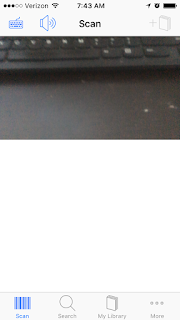 Choose a book and put the bar code in the box.
Then you have three levels pop up Lexile, DRA, and GRL. I put all three levels in my books. If I ever change schools I do not want to have to redo the process or if my school changes systems I do not want to redo the process. This app is super easy to use. I also like the levels and feel they are accurate.
You can also save your books to my library so you have a record of your books.
The next app I want to talk to you about it Scholastic Book Wizard. This app is FREE!
It is the app above lit leveler. It work the same as lit leveler. The app originally did not have as many books as lit leveler but they have improved it a lot.
First you need to log in.
 You can choose to type a book or scan a book. To scan a book click scan a book.


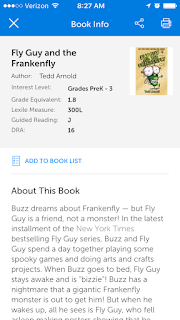
 Just scan the barcode to get the book information.
I tell my parents about scholastic book wizard and lit leveler so they can go to the library and find books for their children to read.
It seems like so long ago that I stared at that pile of books. Hope this helps make you feel like the task is less daunting.
My second year teaching I remember asking my PF (literacy coach) for help leveling my library. My first school used DRA and I was moving to GRL. We sat there and just stared at the pile of books. It seemed like a daunting task.
Now leveling my library seems second nature to me. Today I am going to show you a few apps you can download to help you as well as my nifty library scanner.
When I started leveling my books in College I began using AR or accelerated reader.

I would type in the title of the book and hope I spelled it correctly. For a present my husband bought me a library scanner. This changed the game.

This scanner would read the ISBN on the back of the book. Then it would pull up the AR level. Using the scanner saved me hours of work. (We also use if for anything with a ISBN on the computer.)

The 1.8 stands for first grade 8th month.
By now I was starting my own classroom and realized that Kinder and first classes do no use AR. I needed to go back to the drawing board.
One of the previous librarians at my campus emailed us about this amazing app that was free for teachers one day only. It is called Lit Leveler. It is no longer free unfortunately but this is the app that I used to begin to level my library. I would still say it is worth them money. It is the little green app.

When you open the app it looks like this. There is a box on top that looks like a camera. At the bottom you will see scan, search, my library.


Then you have three levels pop up Lexile, DRA, and GRL. I put all three levels in my books. If I ever change schools I do not want to have to redo the process or if my school changes systems I do not want to redo the process. This app is super easy to use. I also like the levels and feel they are accurate.
You can also save your books to my library so you have a record of your books.
The next app I want to talk to you about it Scholastic Book Wizard. This app is FREE!
It is the app above lit leveler. It work the same as lit leveler. The app originally did not have as many books as lit leveler but they have improved it a lot.
First you need to log in.


I love the summary of the book that it includes. This app also had Lexile, DRA, and Guided Reading.
If you get a scanner you can also search on your computer.

I tell my parents about scholastic book wizard and lit leveler so they can go to the library and find books for their children to read.
It seems like so long ago that I stared at that pile of books. Hope this helps make you feel like the task is less daunting.
Monday, July 31, 2017
Setting up my library
As the summer occurs teachers spend hours in professional development and pinterest. We are learning the new strategies and latest research to apply in the classroom.
This year I was very lucky to attend some grant funded training from Region 4. During the training the same question kept coming up.
"How do you set up your classroom library?"
To answer this question I need to preface that I am obsessed with books. My husband sets a timer for 10 minutes and 20 bucks in a book store because I can easily spend hours and hundred of dollars. Below are pictures of our library at home.


So back to the question "How do you set up your classroom library?".
The first thing is a set up at home. When we moved last year we had a room designated for the library. We lined the room with shelves. Then we purchased white magazine files from IKEA. They were 5 for a dollar.

Each set of books was grouped together by common themes, authors, and type.
Then it was label time. I made a word document full of labels. As I got more books I made more labels. Then I shrunk the label pictures and printed them on file folder labels. (I put about 4-10 pictures per label). The small label went on the right hand corner of the book.


Next, came the stamps/stickers. I started out with labels that said my name and ar. Then I added DRA, GRL, and Lexile. This was getting expensive so I used a coupon and got a custom stamp from VistaPrint.


After leveling all my books I used an amazing present from my husband. He got me medical labels so I can put the reading levels on the side.


The kids can choose to read their level or not but its super easy for them.
Watch the video for the home library tour!
Subscribe to:
Posts (Atom)